Whether you are clearing space, preparing to sell your device, or simply tired of the notifications, removing Samsung's built-in secure partition requires a few specific steps to ensure you don't permanently lose hidden files.
To remove Samsung Secure Folder, open the Secure Folder app, tap the three dots (Menu) > Settings > More settings, and select Uninstall. You will be prompted to either move your media files out of the folder or delete them permanently. Once confirmed, the partition is erased.
Removing the Secure Folder is generally straightforward, but because it relies on hardware-level encryption, a mistake here can result in permanent data loss. Before you begin the removal process, ensure you have:
Samsung Secure Folder is not just a hidden directory; it is an entirely separate, encrypted container built on the Samsung Knox hardware security architecture. When you move a photo, document, or app into the Secure Folder, it is encrypted and isolated from the main Android OS.
When you initiate the removal process, the system gives you two options regarding your data:
Note: Applications installed inside the Secure Folder, along with their settings and accounts (like a secondary WhatsApp profile), cannot be exported. They are always deleted during uninstallation.
The safest and most reliable way to disable the Secure Folder on a Samsung Galaxy device is through the native OS settings. This process requires no third-party software.
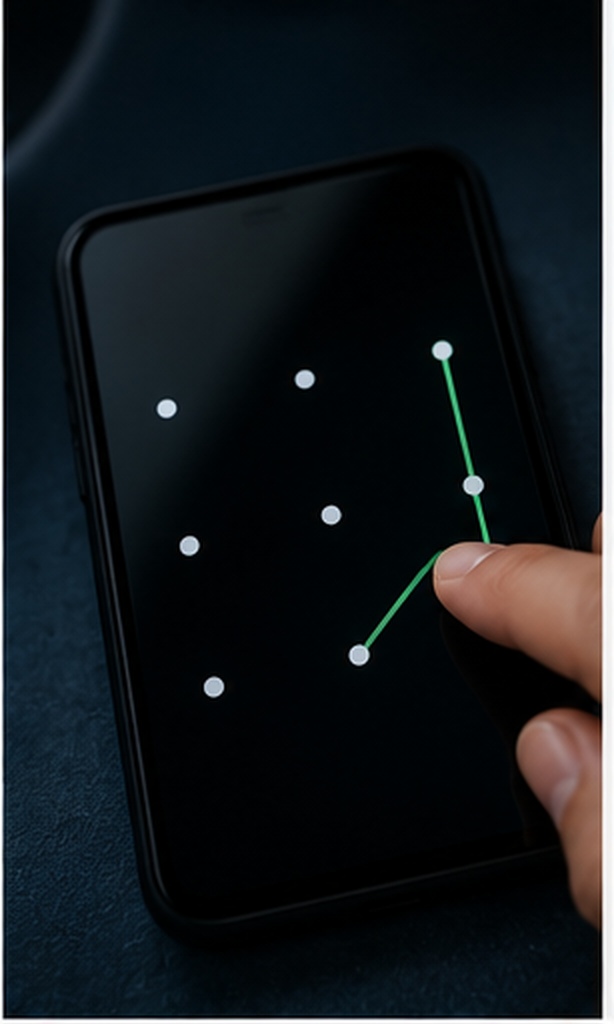
Locate the Secure Folder icon in your app drawer and tap it. Enter your PIN, pattern, biometric data, or password to access the contents.
Tap the three vertical dots (More options) in the top right corner of the screen, then select Settings from the dropdown menu.
Scroll down to the bottom of the Settings list and tap on More settings. (On some older Android versions, the uninstall option is located directly in the main Settings menu).
Tap Uninstall. A prompt will appear warning you that the folder will be removed.
Check the box that says "Move media files out of Secure Folder" if you want to keep your photos and documents. If you want to permanently erase them, leave it unchecked. Finally, tap Uninstall to begin the process.
Once the process completes (which can take several minutes if you are moving large video files), verify the removal:
Many users search for how to remove the folder simply because they are tired of seeing the persistent "Secure Folder locked" notification. If you want to keep the security benefits but hide the alerts, you can adjust your privacy settings instead.
Go to your phone's main Settings app > Apps.
Scroll down and select Secure Folder. You may need to authenticate.
Tap Notifications. Here you can toggle off "Show notifications" completely, or specifically disable "Secure Folder locked notification".
While Samsung's Knox architecture is incredibly secure for isolating data, it is notoriously rigid. If you removed your Secure Folder because it duplicated your apps, drained your battery, or trapped your files on a single device, a dedicated third-party app locker is a much more practical alternative.
Samsung's built-in solution creates a separate partition. To lock an app (like WhatsApp or a banking app), it must create a completely separate, duplicate installation of that app. This consumes massive storage overhead, requires separate logins, and makes moving your hidden data to a non-Samsung device nearly impossible.
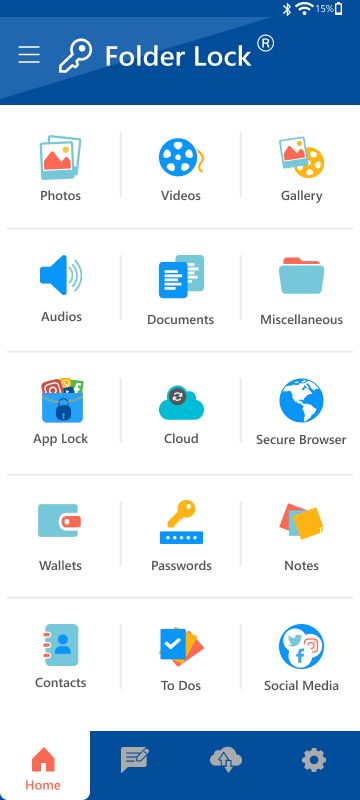
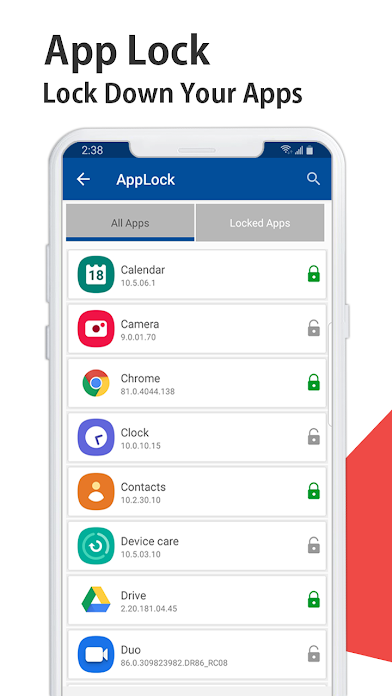
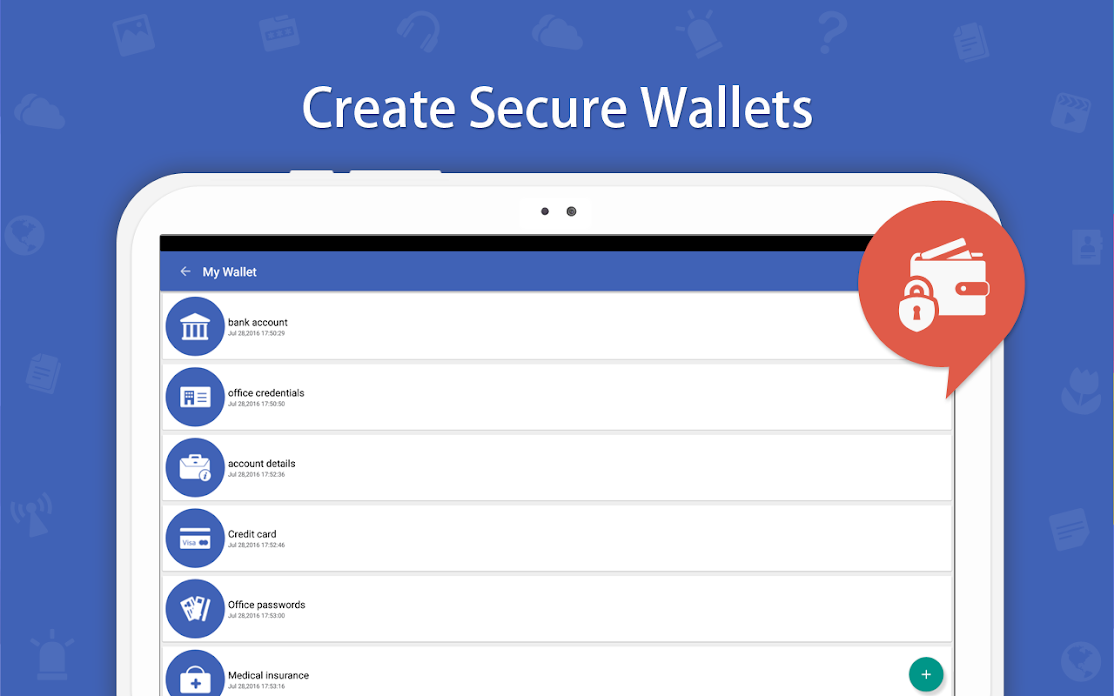
Dedicated security software like Folder Lock bypasses partition cloning entirely. It lets you place a PIN or biometric lock directly over your existing apps without duplicating them. Furthermore, it encrypts your photos and documents using AES-256 and allows you to securely back those vaults up to Google Drive, Dropbox, or OneDrive.


If you removed Secure Folder because you want a flexible, cross-platform way to protect files and lock specific apps without the bloat, we recommend Folder Lock. It secures your data with AES 256-bit encryption and safely backs it up to your favorite cloud service.
Many users trying to delete the Secure Folder encounter a roadblock: they cannot remember the password to get inside in the first place. You cannot uninstall a locked Knox container from the UI. Let's find your solution.
If you don't want to delete the whole folder, but just want to remove a specific app (like moving WhatsApp back to your main screen): open the Secure Folder, long-press the app icon, and select Uninstall. Note that this uninstalls the secure instance of the app and its data. To use the app normally, re-download it from the Google Play Store outside of the Secure Folder.
As covered in the troubleshooting matrix above, you cannot selectively uninstall the Secure Folder without the PIN/Pattern, as this would be a massive security flaw. If you lack the credentials, your only route to rid the device of the folder is a complete device factory reset (Settings > General Management > Reset > Factory data reset), which wipes all data on the phone.
Yes. By following the steps to uninstall via the Secure Folder settings, the encrypted Knox partition is completely removed from your device, freeing up the storage space it occupied.
If you just want to hide it rather than delete it, you don't need to uninstall. Pull down your Quick Settings panel, find the "Secure Folder" toggle, and turn it off. The app icon will disappear from your app drawer, but the folder and its contents remain safe on your phone.
Go to your phone's main Settings > Apps > Secure Folder > Notifications. You can turn off alerts entirely, preventing the system from reminding you the folder is locked in the background.
Not if you choose the right option. During the uninstallation prompt, you are given the choice to "Move media files out." Checking this box safely decrypts your photos and documents and returns them to standard internal storage.
If you select the move option, media files are migrated. However, app data (like chat histories in a secure instance of a messaging app), secure contacts, and Samsung Notes created inside the folder are always permanently deleted upon removal.
No, Samsung Knox limits each device to a single Secure Folder partition. If you need multiple vaults or profiles, you will need a third-party app like Folder Lock, which allows you to create as many separate encrypted vaults as you need.
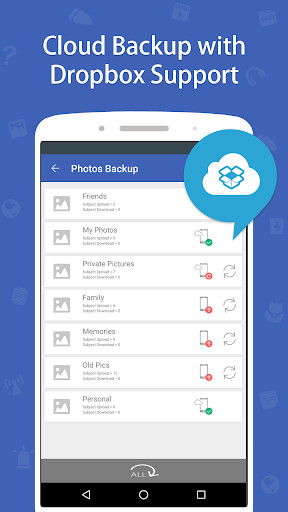
Native secure partitions often restrict cloud backups to prevent data leaks. If you use an alternative like Folder Lock, it integrates directly with Dropbox, Google Drive, and OneDrive. You can sync your AES-256 bit encrypted lockers directly to the cloud, ensuring your data is safely backed up before you wipe any device.
No. The Secure Folder uses hardware-backed encryption keys specific to your physical phone's motherboard (Knox Vault). It cannot be synced to, opened from, or accessed by another phone, tablet, or PC directly.
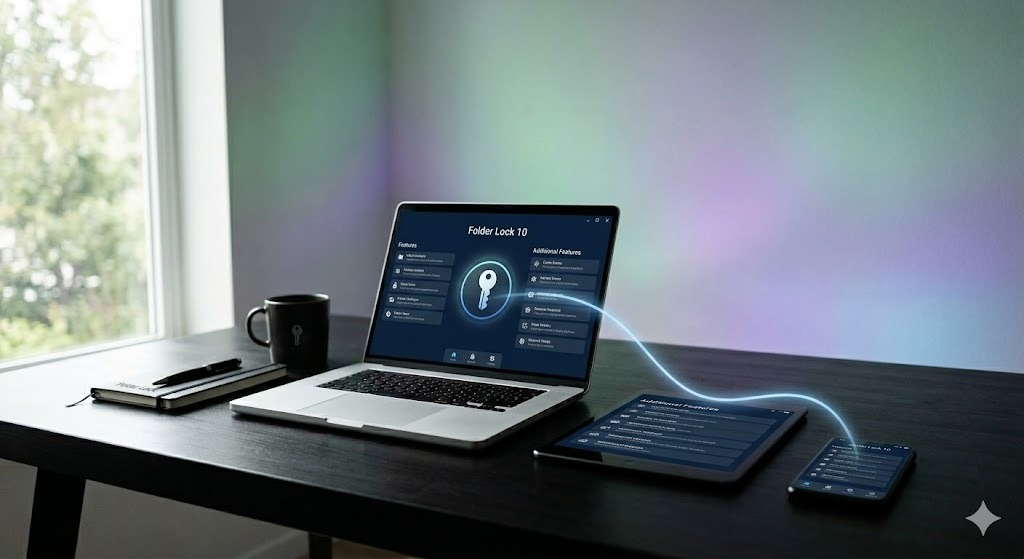
No. Even if you plug your phone into a PC via USB, the contents of the Secure Folder remain invisible and encrypted. You must move the files out of the Secure Folder on the phone first before a PC can view or copy them. By contrast, a tool like Folder Lock allows you to access your secure vaults across Windows, macOS, iOS, and Android seamlessly.
Samsung's folder creates a walled garden requiring duplicate apps. Standard app locking (like with Folder Lock) simply places a biometric or PIN gate in front of your existing applications on the main home screen, making it much faster for daily use without duplicating data.
Removing the Samsung Secure Folder is a simple process, provided you know your password and take care to export your media files during uninstallation. If you found the native Knox environment too restrictive, difficult to back up, or prone to duplicating your apps, dedicated software offers a far more flexible and robust alternative.